
Everything your new website does, step by step: what you do, what we do, and what happens when. Keep this guide handy. If anything isn't clear, email us or call (281) 841-1577.
Most of this guide covers both monthly plans Basic Complete. Features only on Complete are marked Complete. If you chose a one-time Own It package, read Own It: your website files.
- Your first weeks
- Own It: your website files
- Your CSK Sites page
- Quote requests
- Estimate scheduling
- Your weekly page and Google post
- Google listing review and setup
- Google review requests
- Weekly review replies
- Repeat-job reminders
- Refer a Neighbor
- Cost estimator
- Your reports
- Changes to your website
- What we do behind the scenes
- Brand package
- Ad pages
- Billing and cancelling
- Emails you'll get, at a glance
Your first weeks Basic Complete
From the day you sign up to the day your new website goes live.
- You sign up. Right away you get an email called "Welcome to CSK Sites: here's what happens next", with a button to check your website details.
- You check your details. We've already filled in everything we could find on your current website and your Google listing, and we already have your logo and photos. Check it, fill in the few blanks, and add new photos only if you want more on your site (up to 40). It saves as you go. When you send it, you get an email saying "We got your website details".
- We build your full website, usually within a week of getting your details.
- You review it. Your build includes two rounds of changes before launch. Send each round as one list, so nothing gets missed.
- You approve it, and we launch it. We walk you through one quick change at the company where your domain is registered. We never need your password. We copy your email settings first, so your email keeps working the whole time.
- We set up your Google listing the day your site goes live. You add us as a manager first (see Google listing review and setup).
- You get your CSK Sites page. On launch day we email you the link to your private page, where everything for your website lives. Save it to your phone's home screen.
On Complete, your Local Visibility Report arrives by launch, and your monthly update starts on the 1st after your site has been live about a month (see Your reports).
Added the brand package? We design it once your website is live, so it matches (see Brand package).
Own It: your website files Own It
Your design as ready-to-upload files, yours to keep. One payment, and we're done after we send them.
- Tell us who gets the files. Your welcome email asks for it: reply with the email address of whoever will put your website online, you or your web developer. Not sure who that is? Tell us, and we'll talk it through before we start.
- We check they can put the files online. The files are a standard website. They work on regular web hosting, but they can't go inside site builders like Wix or Squarespace, and they aren't a WordPress theme. If nobody can put them online, we'll offer our Basic plan or refund your payment.
- We prepare your files: every page of your design, exactly as designed, with a marked spot where your own contact form goes and a short read-me with the steps to put it online.
- We send the download to the person you named, and copy you.
Good to know: Own It doesn't include hosting, changes or the features that run on our system (the quote form, scheduling, review requests and reminders). We never touch your current website, hosting or domain. Changed your mind before we send the files? You get a full refund. Once they're sent, they're yours and Own It is non-refundable.
Your CSK Sites page Basic Complete
One private page with everything for your website. No login: the link is your key.
What's on it
- Send this week's job or question, with how many pages you have left this month.
- Your latest Google update, ready to copy and post.
- Ask a customer for a review and your latest review replies Complete.
- Estimates: ones waiting for you to confirm, and the ones coming up, each with a button to confirm, change or cancel.
- Your last 10 quote requests, with buttons to ask for a review and set a reminder Complete.
- Reminders that are set, each with "Change or stop" Complete.
- Share with customers: your Google review link with a QR code, and your Refer a Neighbor link Complete.
- Photo for your review requests, the one that goes in every request Complete.
- Need a change? A box to send us changes for your website.
- Your guide: a link back to this guide, any time you need it.
- Your plan: which plan you're on, with a button to see Complete and upgrade Basic.
- Billing: update your card, download invoices, switch plans or cancel.
On the Basic plan, the Complete features show on your page and in your quote request emails in grey, tagged Complete. Tap one to see what it does and how to upgrade. They don't do anything until you're on Complete.
Keep it private. Anyone with the link can open it, so don't post it anywhere. Lost it? Every email we send you has a link to it at the bottom.
Quote requests Basic Complete
Customers ask for a quote on your website, and it comes straight to your email.
- A customer fills in your quote form: their name, phone or email, the job, the address, any details, and up to 6 photos.
- They get an email from your business right away, called "We got your request", with a copy of what they sent and when you'll get back to them.
- You get an email right away, called "New quote request from [their name]". It has buttons to call them or reply, the times they picked (if any), their details and their photos. Replying goes straight to the customer.
What you do
Call or reply to the customer. If they picked times, confirm one (see Estimate scheduling). Once the job is done, on Complete the same email has buttons to ask for a review and set a reminder.
Good to know: spam is filtered out automatically and never reaches you. Photos are kept 120 days, so save any you want to keep. Your last 10 requests are always on your CSK Sites page. Want different questions on your form? Send us a change.
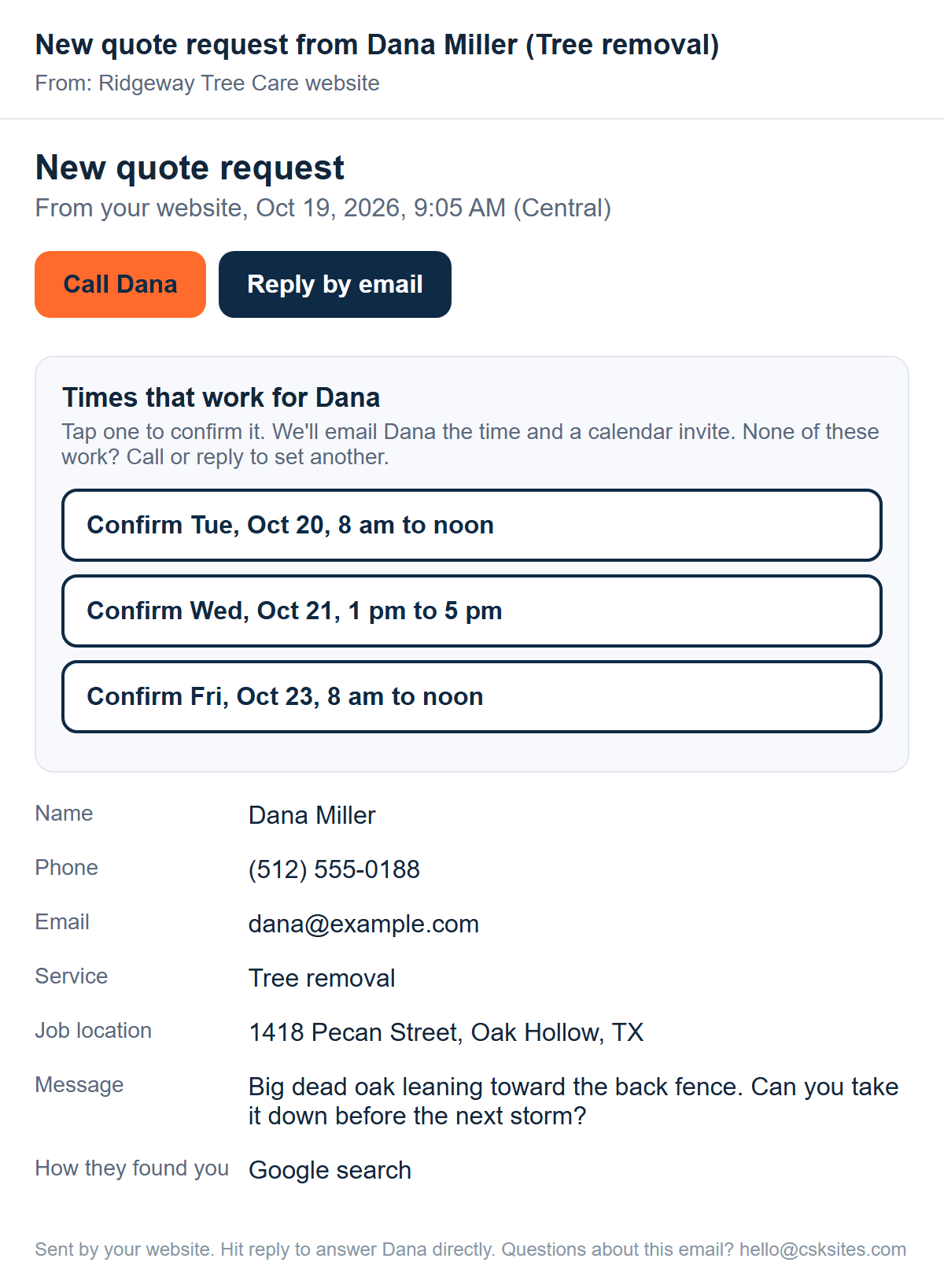
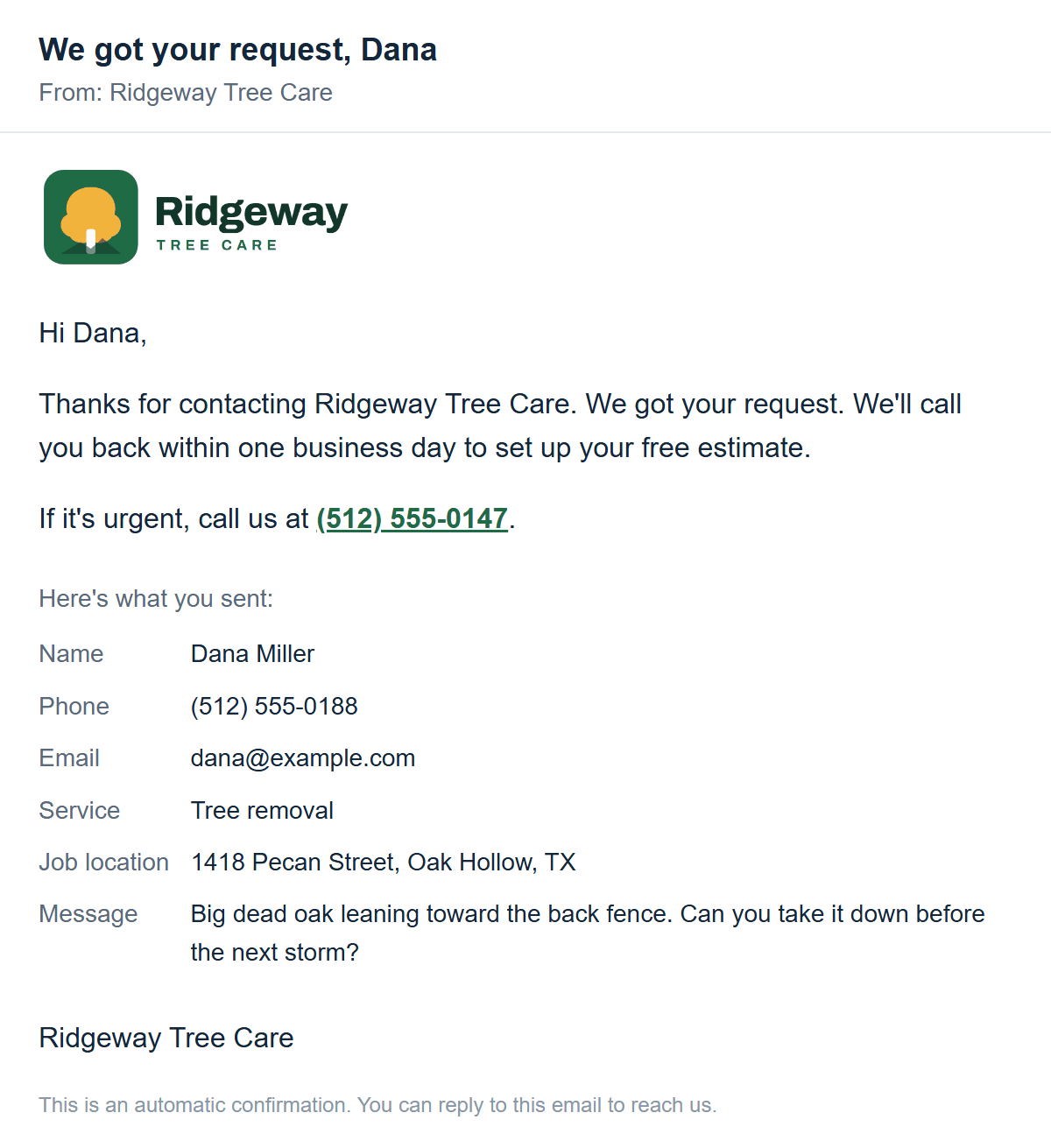
See it in action: the sample quote form.
Estimate scheduling Basic Complete
Customers pick times that work for them, and you confirm one with a tap.
- The customer picks up to 3 times on your quote form, from the days and hours you do estimates. This step is optional for them.
- Your quote request email shows "Times that work for [first name]", with a Confirm button for each time.
- Tap the time you want, check it on the page that opens, and tap "Confirm and email [first name]". That page also lets you pick a different time or call them.
- The customer gets an email with the time and a calendar invite. You get one too, called "Confirmed: free estimate with [their name]", with your own calendar invite.
- The morning before, the customer gets a reminder email, and you get a list called "Tomorrow's estimates".
- Need to change or cancel? Open their booking page from your confirmation email, or tap "Change or cancel" on your CSK Sites page. The customer is emailed the new time or the cancellation.
What you tell us: the days and hours you do estimates, and any days off or holidays. Send a change any time those change. Already use a booking tool like Jobber or Housecall Pro? We can link to it instead.
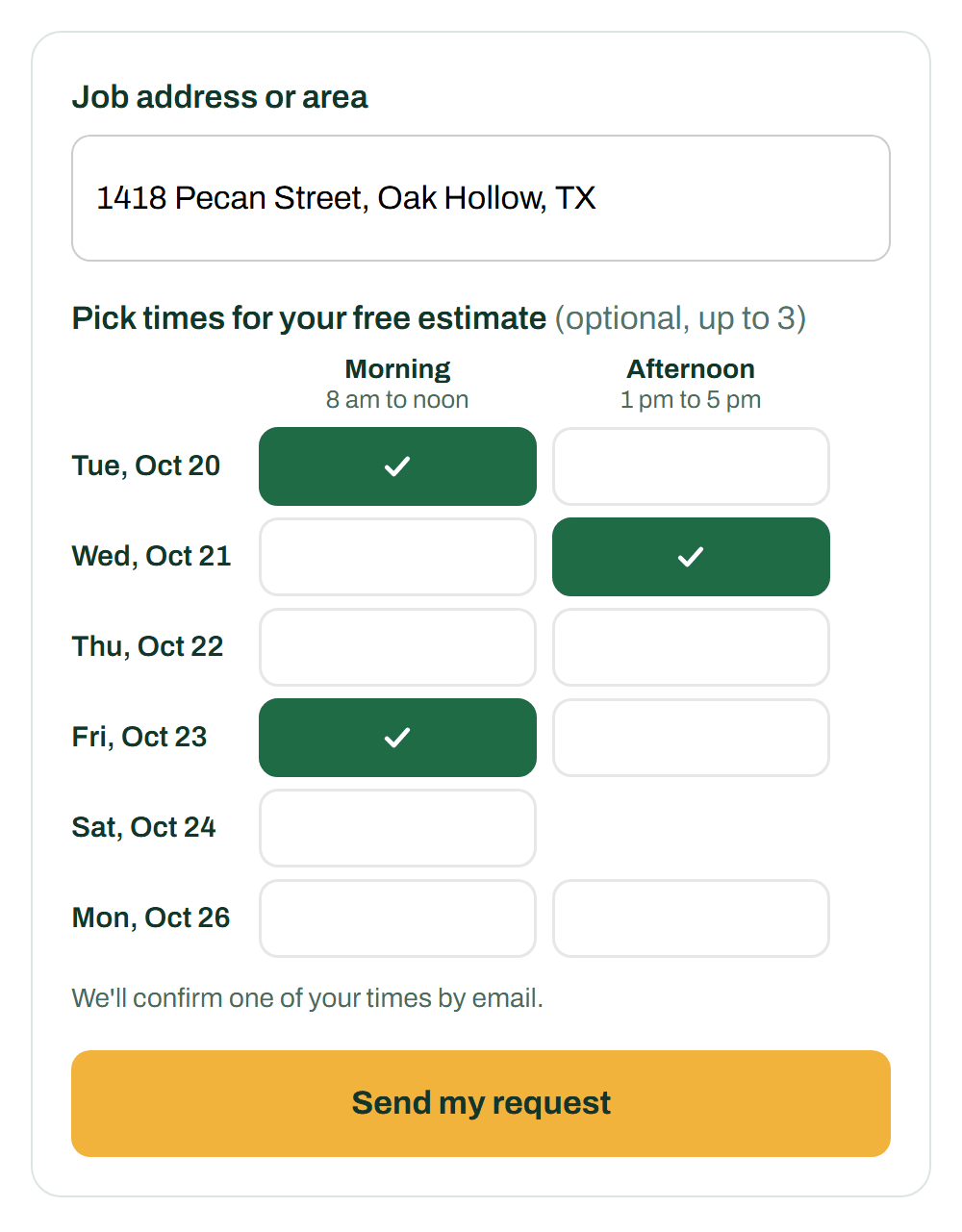
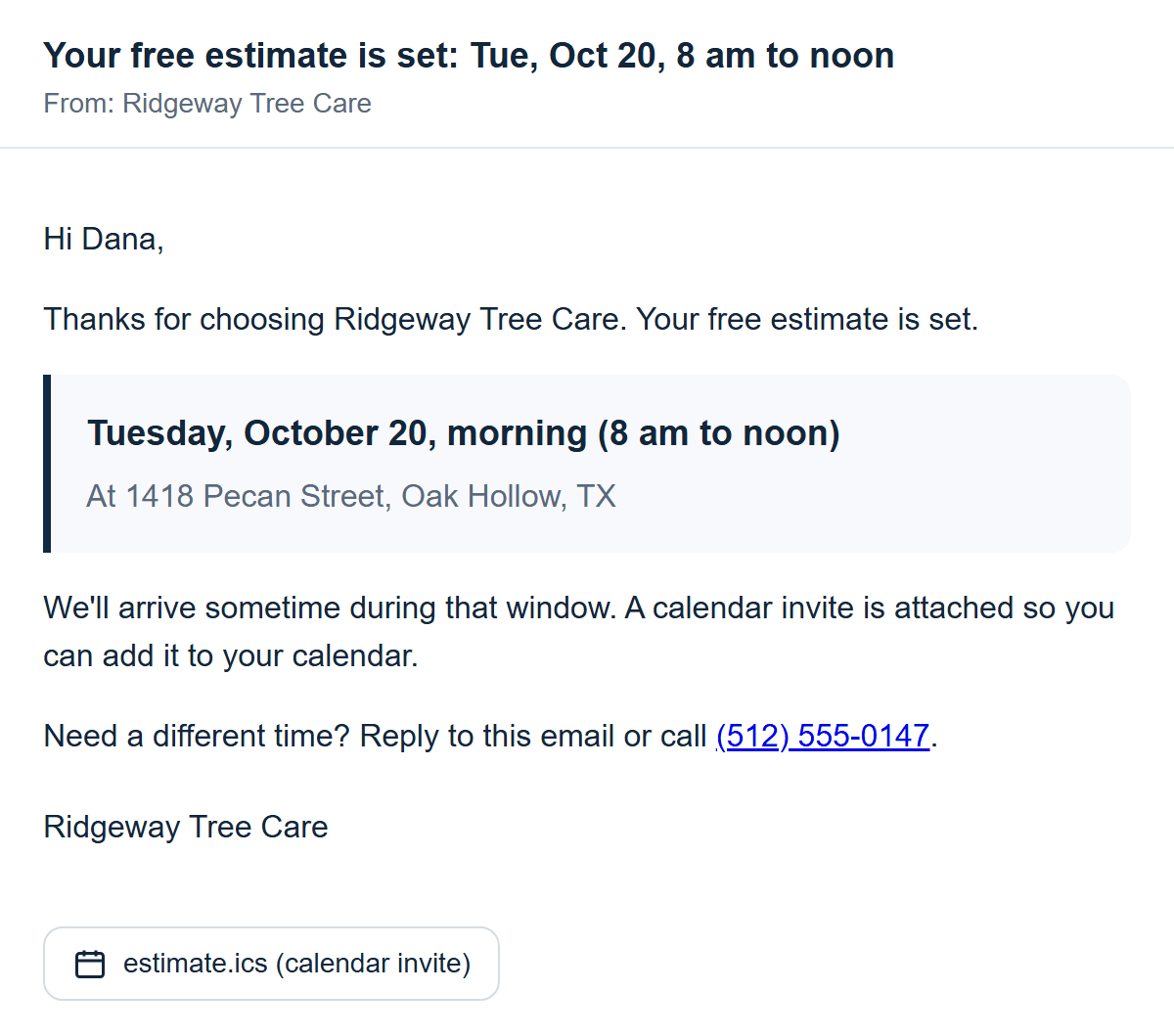
See every step: the sample scheduling walkthrough.
Your weekly page and Google post Basic Complete
Send us a job or a customer's question, and we turn it into a new page on your website and a post for your Google listing.
- Every Monday you have pages left, we email you "Your page of the week", with a button to send one.
- Send a job or a question from your send page (that button, or your CSK Sites page). A job: up to 6 photos and a sentence or two about it. A question: what the customer asked, and your answer in a few words. Tap "Send it".
- We write it into a new page on your website, usually within a few days. We only use what you send: no made-up prices, sizes or details.
- The next morning after it goes live, you get "Your new page is live", with a button to see it.
- Post it on Google too. That email has a "Get your Google update" button. It opens a page with the photo (tap "Save the photo"), a short update we wrote ("Copy the update") and your new page's link ("Copy the link"), plus the steps to post it on your Google listing. It takes about a minute.
How many: on Basic, 1 a week (up to 4 a month). On Complete, up to 2 a week (up to 8 a month). The count starts over on the 1st, and unused pages don't carry over. Nothing sent means nothing written.
Good to know: pages go up without a separate approval step, and you can ask us to remove any page any time. We never post on your Google listing for you: you post the update yourself.
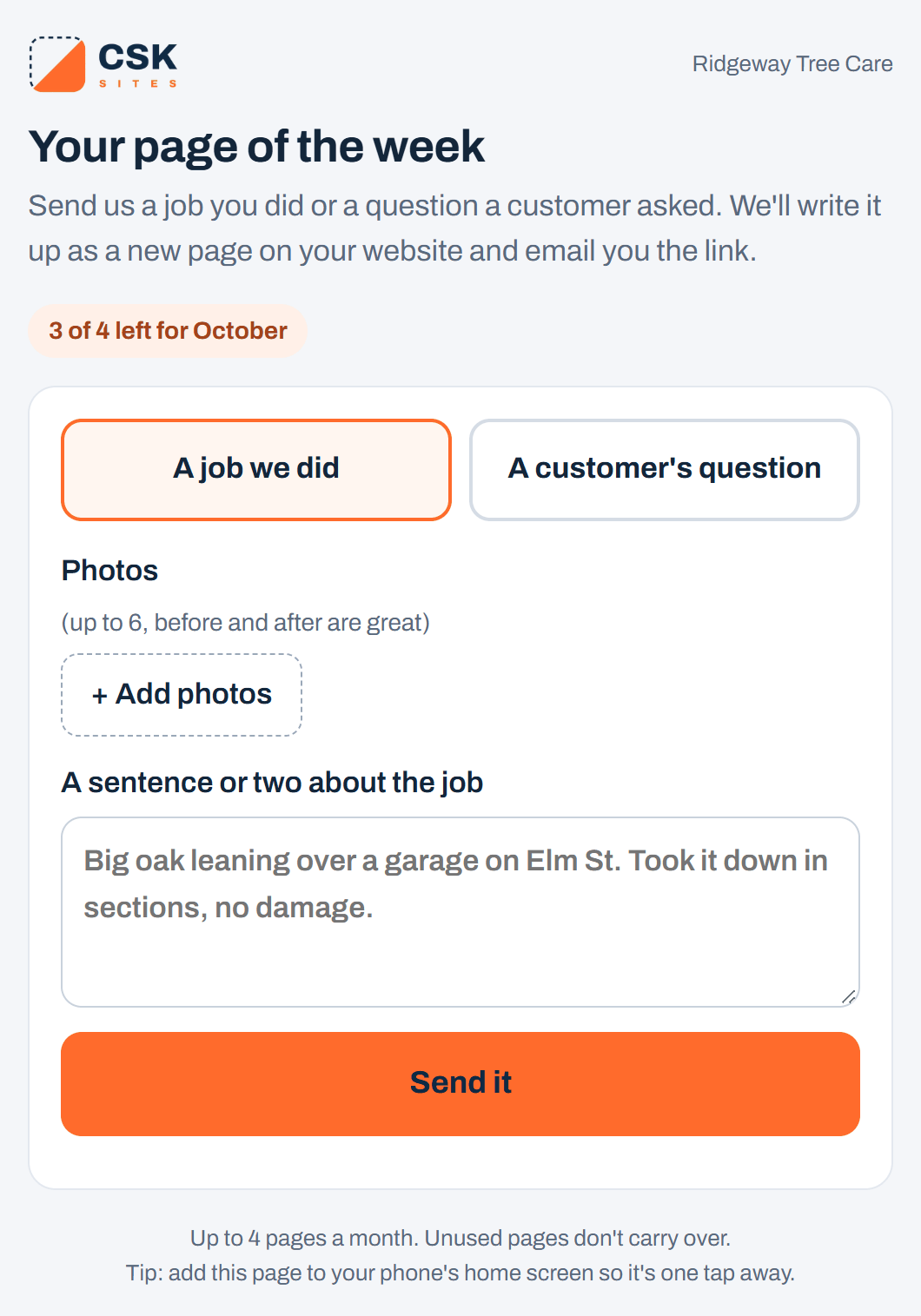
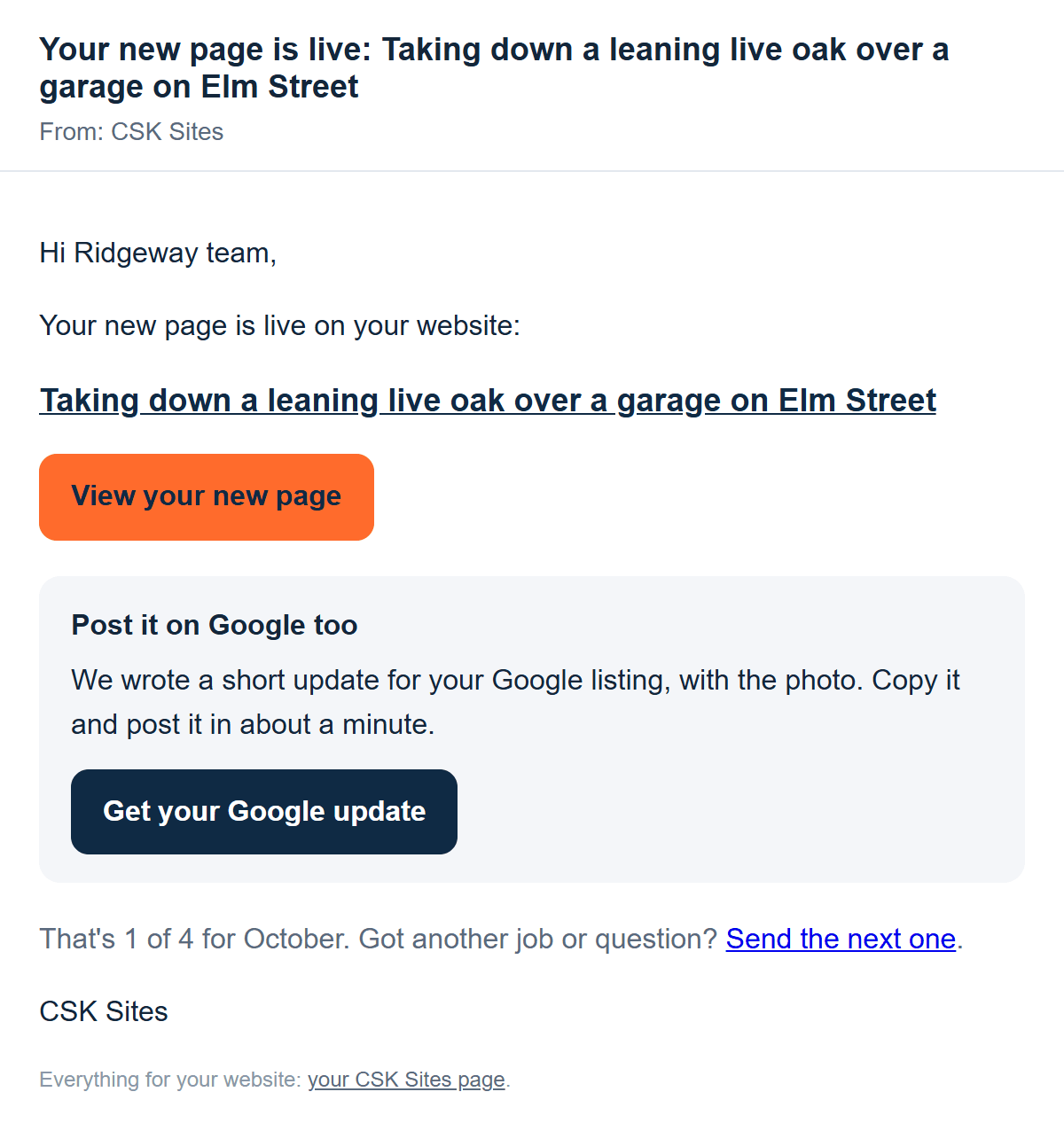
See the samples: a job page and a question page.
Google listing review and setup Basic Complete
When your site goes live, we go through your Google listing and set it up to match. It's done once, and then the listing is yours to run.
- Add us as a manager before launch. On Google, search your business name while signed in, open your Business Profile's menu, then "Business Profile settings", then "People and access". Tap "Add", type hello@csksites.com, choose Manager, and send the invite. You never share a password. If Google can't find that address, use csksitesmanager@gmail.com instead.
- The day your site goes live, we check and set up your business name, categories, services, the towns you serve, hours and phone, the link to your new website, a description and photos.
- After that, it's yours. We don't post or reply on your listing for you. Your weekly Google updates and review replies come ready to copy.
No Google listing yet? We help you create one. Google asks the owner to verify it, often with a short video, and we walk you through that. Want our manager access removed after launch? Just ask. It's removed when you cancel, too.
More detail: what we check and set up.
Google review requests Complete
After a job, ask your customer for a Google review in one tap.
- When a job is done, open that customer's quote request email and tap "Ask [first name] for a review". Or tap "Ask for a review" next to their name on your CSK Sites page.
- You see the exact email they'll get. Add a line of your own and a photo if you like (your saved photo is already filled in), then tap "Send it to [first name]".
- They get an email from your business, called "How did we do, [first name]?", with a "Leave a review on Google" button that opens your Google reviews. Under it, every email also has a "Tell us privately" link.
- When they tap it, your CSK Sites page shows the date.
- If they send a private note instead or as well, you get it by email, called "Private note from [name]". Reply to answer them directly. It isn't posted anywhere.
Customers who called instead
On your CSK Sites page, tap "Ask a customer for a review", enter their name and email (and the job, a line and a photo if you like), and send it. You can send up to 25 a day this way.
Good to know: each customer is asked once a year at most, and every email has an unsubscribe link. Google's rules say to ask every customer, not only the happiest ones, and never to offer anything in return for a review. That's why the private note link is in every email, under the Google button, and its page links to your Google reviews too: it's an extra way to reach you, never a filter in front of Google. Save a default photo (your crew, or a job you're proud of) on your CSK Sites page, under "Photo for your review requests".
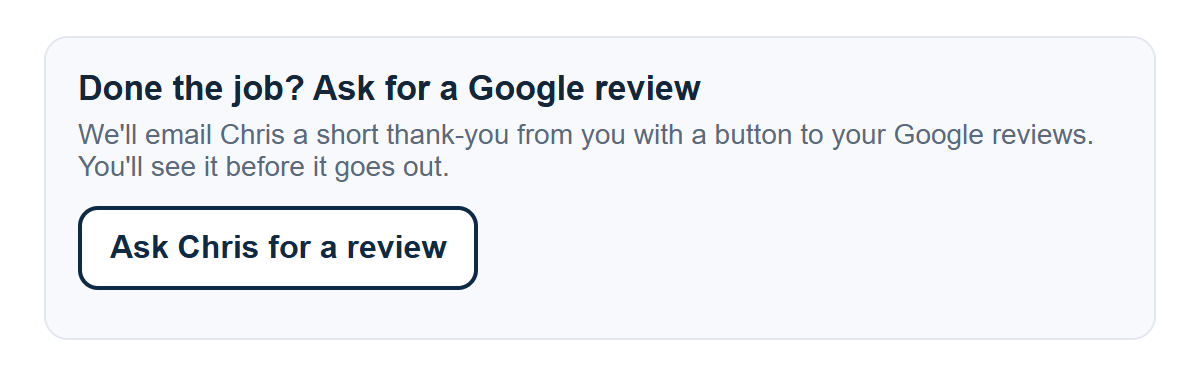
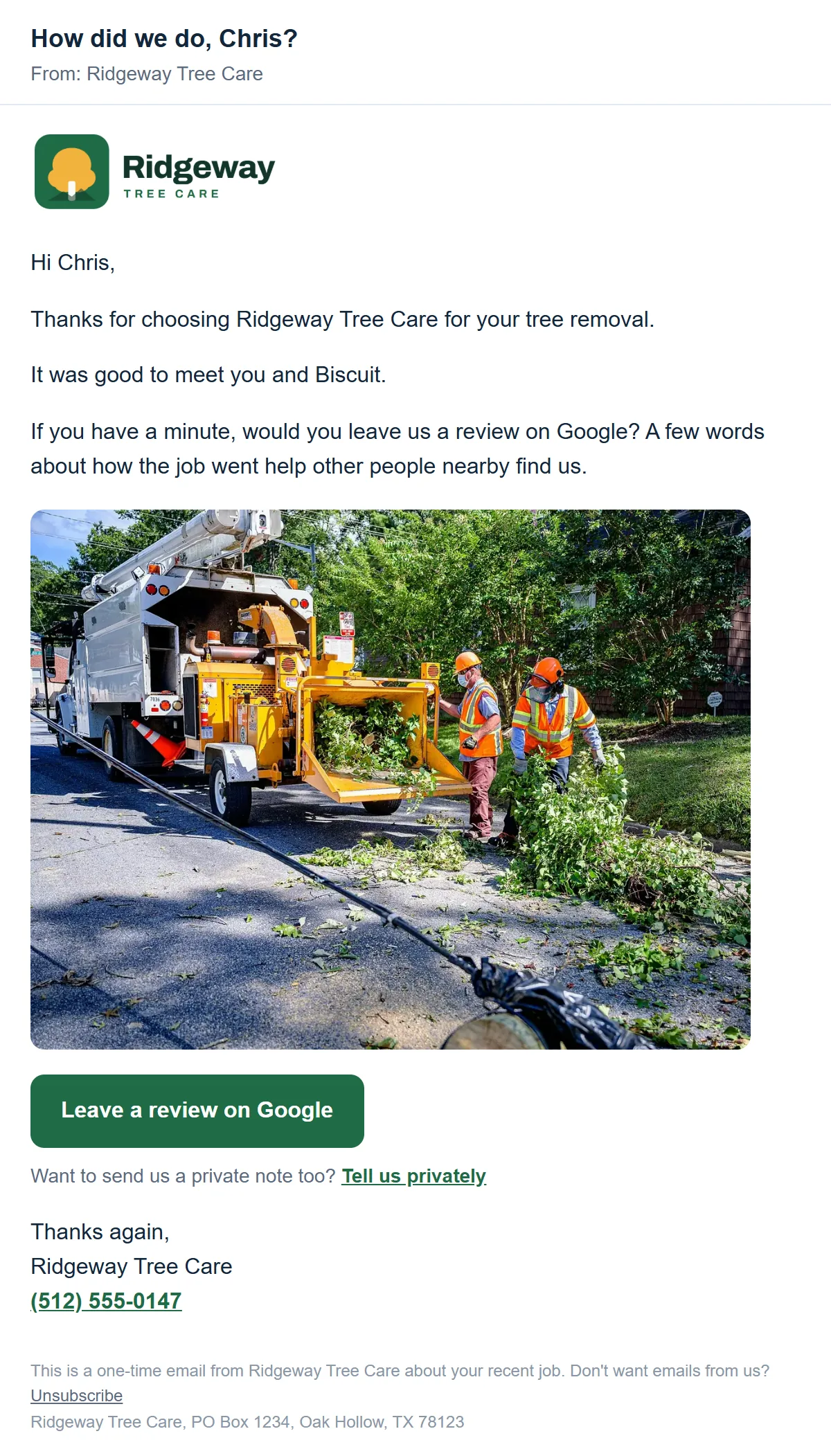
See every step: the sample review request.
Weekly review replies Complete
Every week, your new Google reviews come with a reply ready for each one.
- Once a week, we read your new Google reviews and write a reply for each one.
- You get an email with each review and its suggested reply. Your first one, right after launch, covers your older reviews that don't have a reply yet (up to 25).
- Tap "Open your replies". Change any reply you like, tap "Copy reply", and paste it under that review on Google. The page has a button that opens your Google reviews.
Good to know: reviews of 3 stars or less are marked "Read this one carefully". You might want to call that customer before you reply. A week with no new reviews means no email. Nothing is posted for you: you read every reply and paste it yourself.
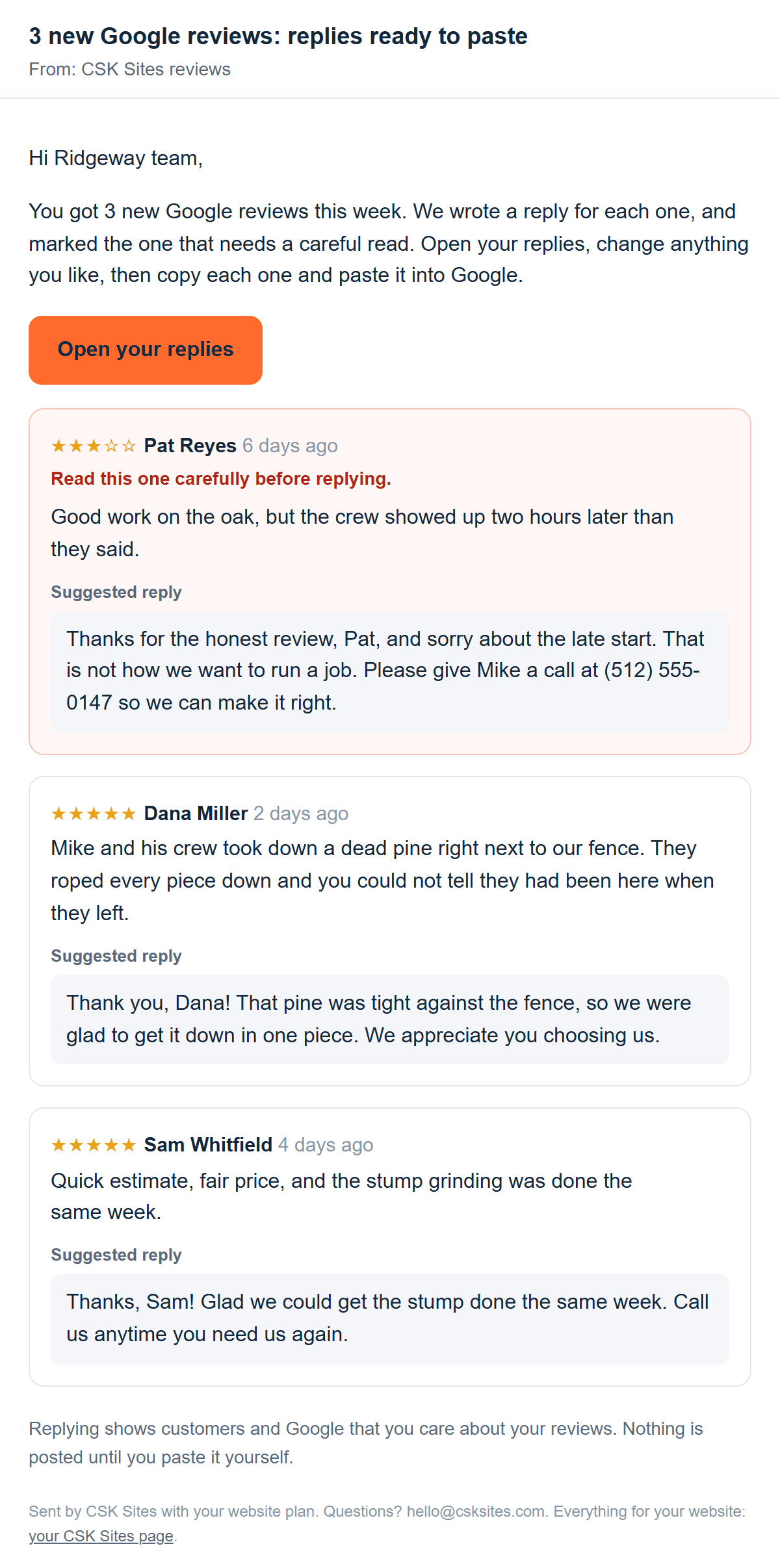
See every step: the sample review replies.
Repeat-job reminders Complete
Set a friendly reminder for a past customer, and it goes out from your business when it's time.
- In a customer's quote request email, under "Done the job? Remind this customer later", tap In 1 month, In 3 months, In 6 months or In 1 year. Or tap "Remind later" on your CSK Sites page.
- Choose "Just once" or "Keep repeating", and type what it's for, like "yearly tree check". Tap "Set the reminder".
- On that date, in the morning, the customer gets an email from your business, like "Time for your yearly tree check?", with a "Request a visit" button and your phone number.
- "Request a visit" opens your website's quote form, so their request comes to you like any other quote request.
- You get a short email when each reminder goes out, with buttons to stop reminders for that customer or set another one.
Good to know: change or stop any reminder from "Reminders that are set" on your CSK Sites page. Every reminder has a link for the customer to stop them. Reminders are email only, never texts.
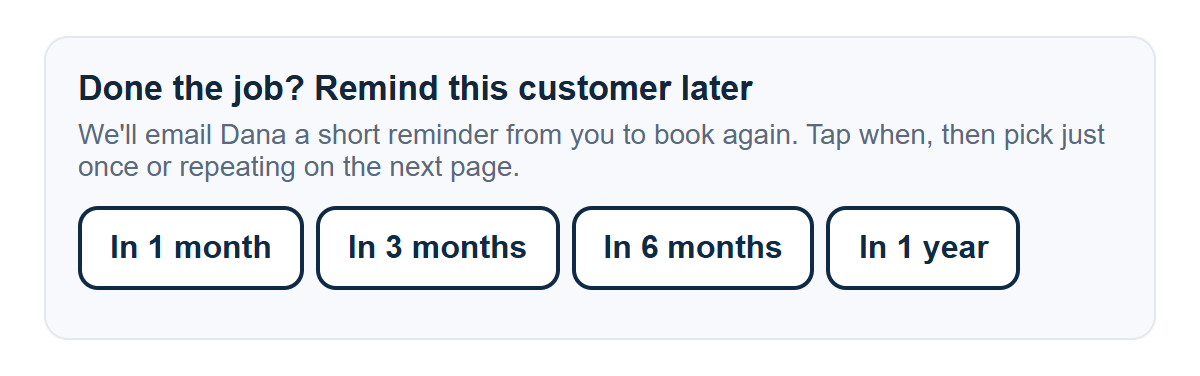
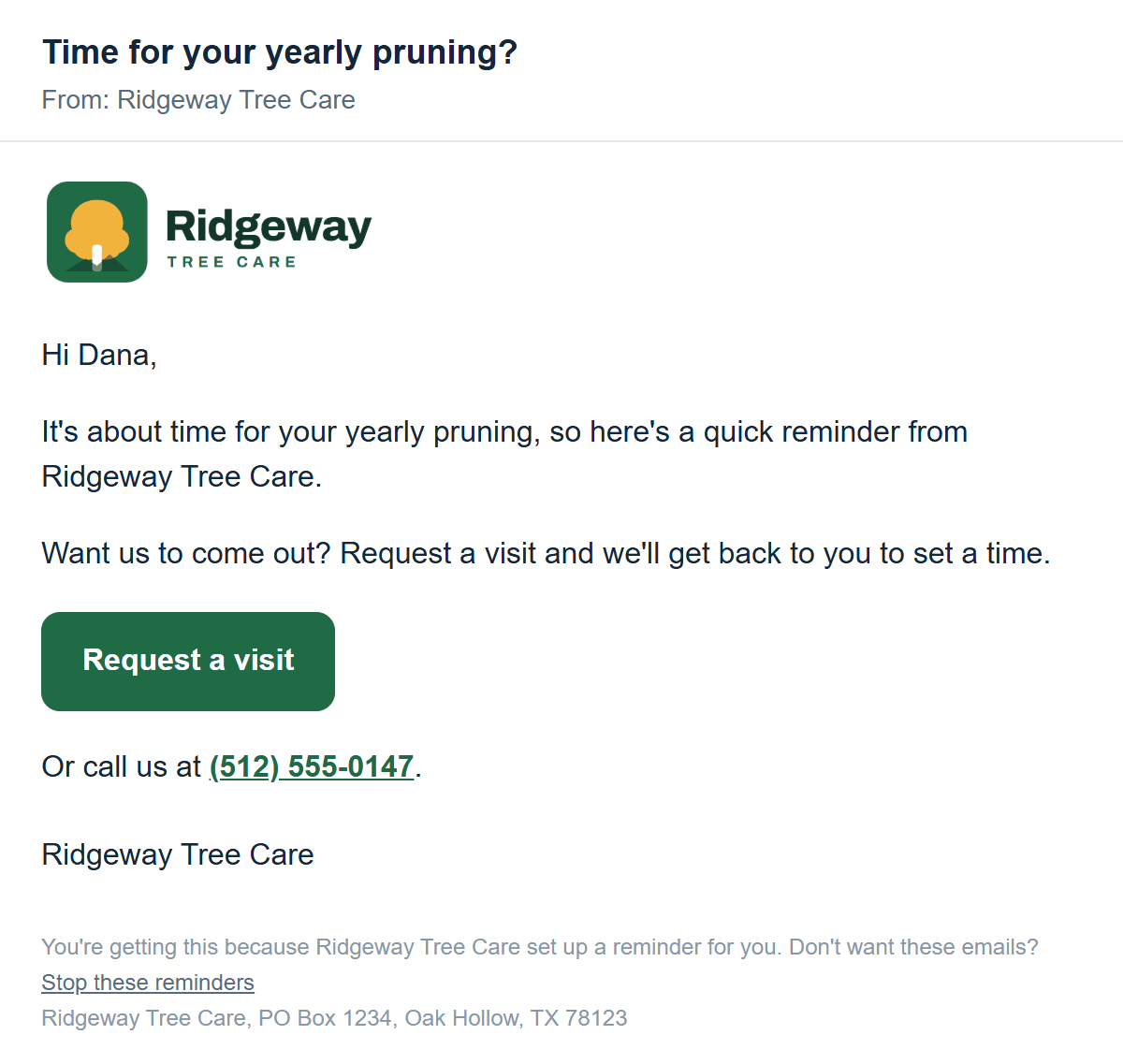
See every step: the sample reminders.
Refer a Neighbor Complete
Happy customers get their own link to send their friends, and you see who sent each one.
- Send happy customers to your Refer a Neighbor page. The link is on your CSK Sites page, under "Share with customers".
- They enter their first name and last initial (email optional) and tap "Get my link". They get their own link to copy or share by email, and a QR code a friend can scan.
- When a friend asks for a quote through that link, your quote request email shows "Referred by [their name]". It works even if the friend comes back days later.
Good to know: we don't contact the customer who referred them. Any thank-you or reward is yours to choose and give.
See every step: the sample Refer a Neighbor page.
Cost estimator Complete
Visitors get a price range for their job before they ask for a quote.
- You give us your real price ranges, on your details form or by email. We never make up prices.
- Visitors pick a service and a few options and see a typical price range.
- "Get an exact quote" fills in your quote form with what they picked, so you see it in their request.
Prices changed? Send us a change, and we update the estimator.
Try it: the sample cost estimator.
Your reports Complete
Local Visibility Report, by launch
How your business shows up on Google, Bing, Apple Maps, Yelp and other sites, how you compare with nearby competitors, what we set up for you on your Google listing, and a short to-do list of the things only you can do, with step-by-step instructions. See a sample report.
Monthly update, on the first business day of each month
Two pages covering the month before: your quote requests and where they came from, phone taps and visitors, where you show up on Google Maps for your main searches, your reviews next to your top competitors, the searches that showed your website, what your website did for you that month, and your to-dos. The first one comes on the 1st after your site has been live about a month. See a sample update.
Changes to your website Basic Complete
- Send us the change from the "Need a change?" box on your CSK Sites page, or email us. You get an email saying "We got your change request".
- We make small changes, usually within two business days, and email you when it's done.
Small changes are to what's already on your site: wording, prices, photos, hours, phone or email, service areas, a new FAQ, a review or a notice. Basic includes up to 5 a month (any more wait for the next month). Complete includes as many as you need.
Bigger projects, like new pages, new sections, new features or a redesign, are quoted first, and nothing is charged without your OK.
What we do behind the scenes Basic Complete
- Every day, we check that your website is up.
- Every week, we test your quote form from start to finish and check your domain's renewal date.
- If anything fails, we get an alert and fix it. You don't need to do anything.
- Hosting: your site runs on fast, secure hosting with SSL, and we keep it and its forms running.
- Your domain: if we registered it for you, it's in your name and we renew it while you're on a plan.
Brand package Basic Complete Own It
Print-ready designs that match your new website. Only if you added it.
- We start once your website is finished: approved and live, or on Own It, once we've sent your files. That way everything matches.
- We design what you picked on your details form: business card, review card with a QR code, door hanger, yard sign, truck door magnets, social media profile and cover images, and an email signature. Skip any you don't need.
- You check the designs, tell us any changes, and we send the final print-ready files with tips for ordering.
Designs, not printing: you take the files to any printer you like and order as many as you need. Once the files are delivered, they're yours, and the brand package is non-refundable. See sample designs.
Ad pages Basic Complete Ad page
A page built for one of your Facebook or Instagram ads. One comes with Basic, up to three with Complete, or $47 a month on its own.
- We build it from your ad: your offer in your words, your best photo, a big call button, a 3-question estimate form and your real reviews. You see a picture of it before anything goes live.
- You change the link in your ad. In Ads Manager, paste your ad page's address into your ad's website link. We walk you through it, and we never need your login. Meta may review the ad again after the link changes, usually within a day.
- Requests come to your email, just like quote requests from a website, with the customer's photo if they sent one. The request shows which ad page it came from.
Your part: tell us when your offer changes. One offer change a month is included, so just email us the new offer. Want your Meta pixel on the page, so your ad counts calls and requests from it? Send us your pixel ID and we'll add it. More about ad pages.
Billing and cancelling Basic Complete
- Your billing page: update your card, download invoices, switch plans or cancel at your billing page. Log in with the email you paid with. The link is on your CSK Sites page too.
- Switching plans: switch between Basic and Complete any time on your billing page. Moving to Complete, you pay the difference for the rest of that month right away, then $297 a month, and we set up your Complete features and email you when they're on. Moving to Basic, the unused part of the month comes off your next bill, and the Complete features turn off.
- Cancel any time, with no fee. Your plan runs to the end of the month you've paid for, and then your website goes offline, along with its quote form, scheduling and reminders.
- What you keep: your domain (moved to you if we registered it), your email (it keeps working), your logo, your brand package designs if you got them, your Google listing (we remove our access), a copy of all your website's words and photos, and a list of your quote requests. We send these within 5 business days.
- Refunds: before your site goes live, you get a full refund. After launch, there are no refunds for part of a month. See our Refund Policy.
Emails you'll get, at a glance
| When | What to do | |
|---|---|---|
| Welcome to CSK Sites: here's what happens next | Right after you sign up | Check your website details |
| We got your website details | When you send your details | Nothing |
| New quote request from [name] | Each time a customer asks for a quote | Call or reply, and confirm a time if they picked any |
| Confirmed: free estimate with [name] | When you confirm a time | Add it to your calendar |
| Tomorrow's estimates | The morning before your estimates | Plan your day |
| Your page of the week | Mondays, when you have pages left | Send a job or a question |
| Your new page is live | The morning after your page goes up | Look at it, then post your Google update |
| We got your change request | When you send a change | Nothing |
| New Google reviews: replies ready to paste Complete | Weekly, when you have new reviews | Copy each reply and paste it on Google |
| Reminder sent to [name] Complete | When a reminder goes out | Nothing, unless you want to stop it |
| Your monthly update Complete | First business day of each month | Read it and do your to-dos |